

about this guide
A microcredential is a small program in a focused area of study. When completed, microcredentials provide a way to demonstrate acquisition and competence of specific skills, knowledge or vocational training to meet employers’ workforce needs. They can function within existing degree programs or as non-credit programs. Those that bear credit are typically 6 - 12 credits, which is fewer credits than degrees and certificates. When a student fulfills the requirements for a microcredential, they will receive an electronic badge that can be shared with employers.
Departments seeking to submit a microcredential for review and approval should consult the Microcredential Creation & Approval Resource Guide prior to beginning the process to prevent delays. Lead administrator approval within the department is needed prior to submission.
REQUSTING COURSEDOG ACCESS
Obtain access to Coursedog through the Access Provisioning Tool. Follow these steps:
New Access Request
Add Access for: (enter your name)
Select APL Approver: Select supervisor from your department (same department code as your entry)
Select Category: Coursedog
What Access Required: Microcredential Management
Permission: Select the role of Requester,
Click “Add Permission”,
Business Case: enter “Microcredential Submission” ,
Click “Submit”,
UITS sends an email when access is granted.
SIGNING IN
Step 1: Begin by navigating to app.coursedog.com.
In the Sign In box, enter your arizona.edu email address.
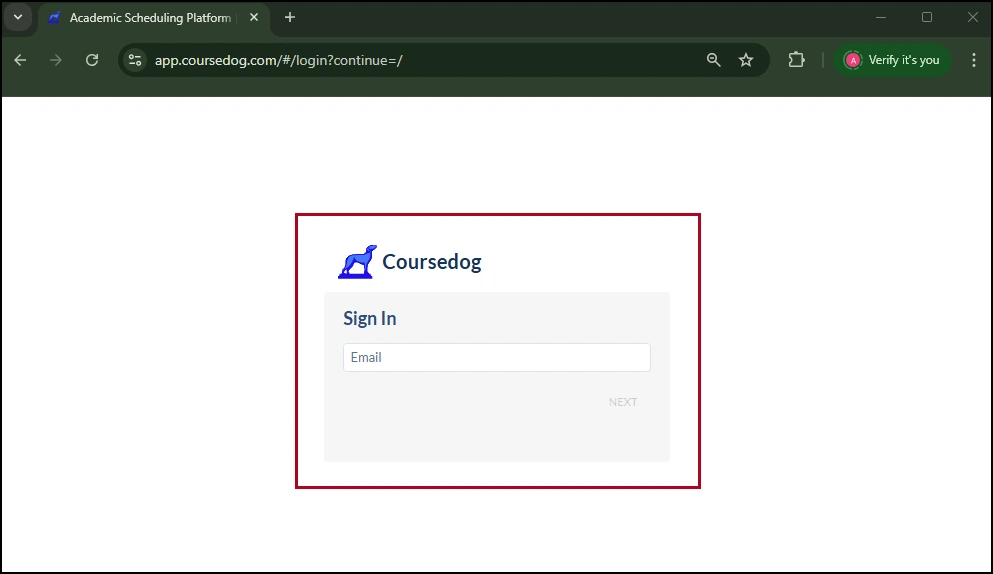
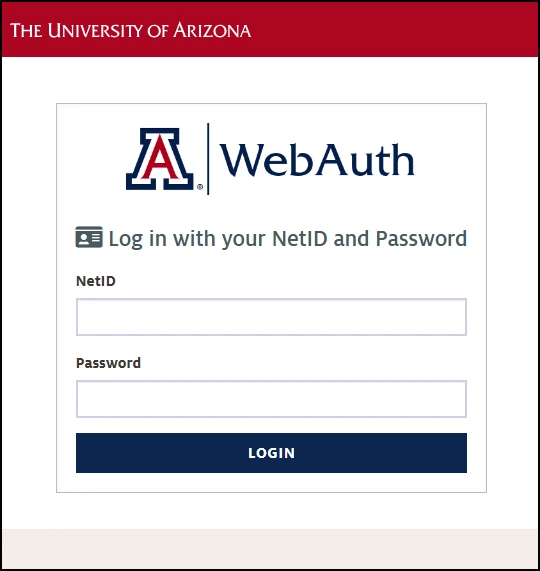
Step 2: Clicking Next will take you to the usual Single Sign-On page where you will enter your UA NetID and associated password. If the Next screen offers you multiple “products” to choose from, please notify the Office of the Registrar at catalog@arizona.edu.
starting a New Proposal
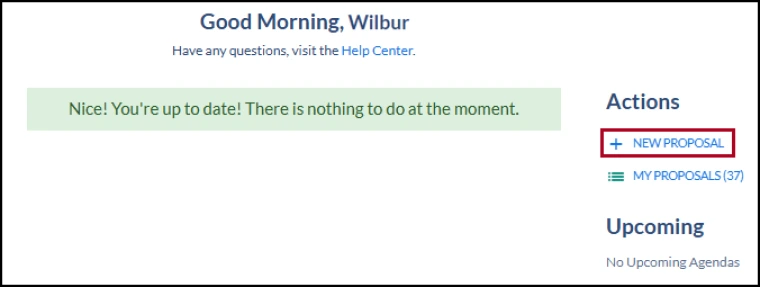
Step 1: To begin a new proposal template, select New Proposals under the Actions label on the right. Any proposal awaiting action from you will be listed on your dashboard under Things to do, which you will see immediately upon logging in. Click on a proposal to open it. If nothing appears under Things to do, then you have no proposals currently awaiting action.
Note: Upon your initial login to the Coursedog website, you may find it beneficial to make a few adjustments to customize your dashboard settings. Please see the Setup Tips section below for guidance on recommended changes.
Step 2: After clicking New Proposal, you will see a menu box open. Use the scroll bar to select Microcredential.

Step 3: Select the form type: Add for a new Microcredential, Modify, or Terminate.

Step 4: Select Go to Form

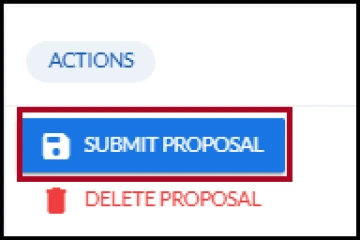
Step 5: After completing the form, under the Actions label on the right, click Submit Proposal
SETUP TIPS: FILTERS AND COLUMNS
Step 1: In order to simplify your experience, it is recommend to apply a number of filters to your Proposals dashboard. To do this, select the Filter icon.
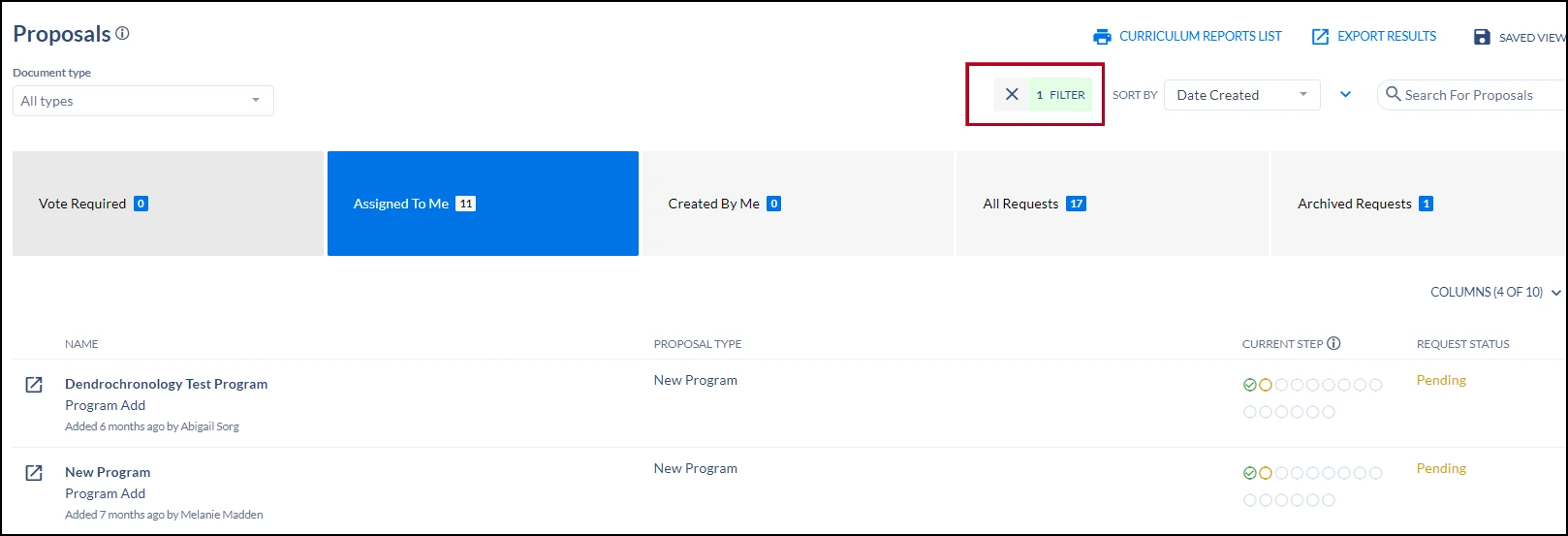
In particular, we recommend setting the Document Type to the type or types of proposal you will be reviewing and Status to include only Pending and Suspended. This will, respectively, eliminate from view documents irrelevant to your role and hide any completed submissions. If you typically review multiple types of proposals — for example, both course and program proposals — you can select multiple Document Types.
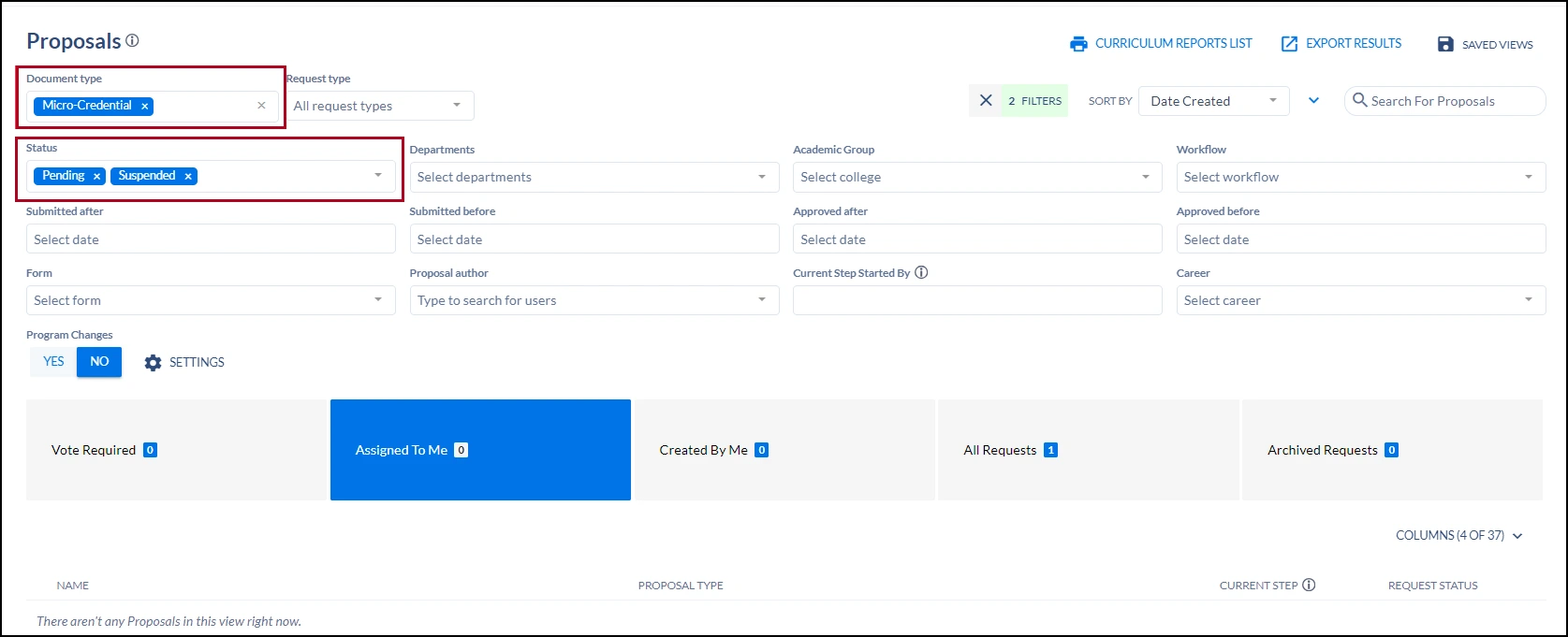
Step 2: You can determine what proposal information displays on your dashboard by clicking to open the Columns menu and selecting or deselecting fields to your satisfaction. The available fields are listed alphabetically, and you can rearrange your selections by clicking and dragging them where you prefer.
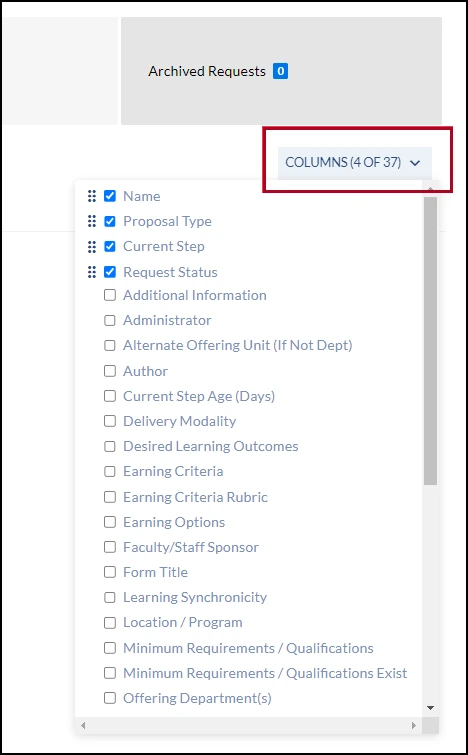
While there is no limit to the number of display fields you can select, please note that each field selected expands the page horizontally; beyond a certain number, you may not be able to see everything on the screen at once and may have to scroll to the right to see more.
Step 3: To save these settings for the future, you will save them as a view. Select the Saved Views icon on your dashboard page, then Save Current View.
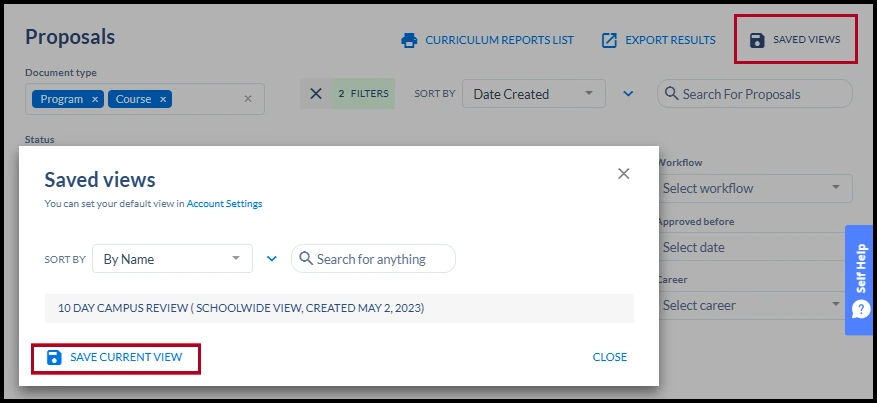
Step 4: Give this view a name that is descriptive and easy for you to recognize, then Save.
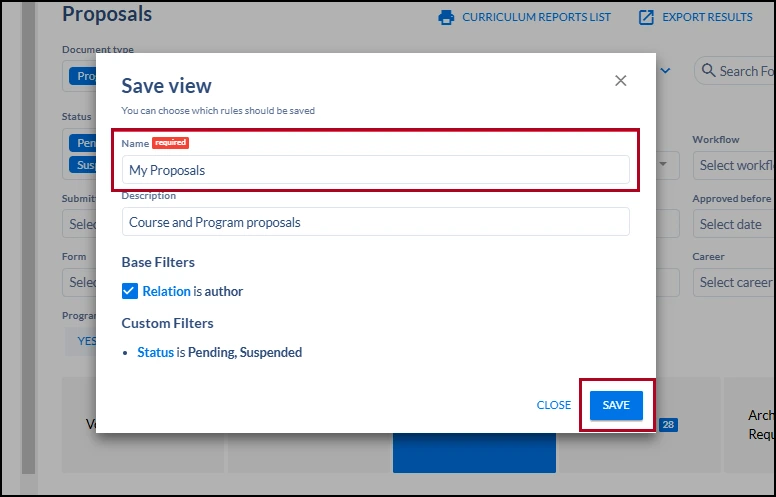
Note: You can create multiple separate views and save them individually; for example, you may find it helpful to create a view to see recently approved proposals separate from pending ones.
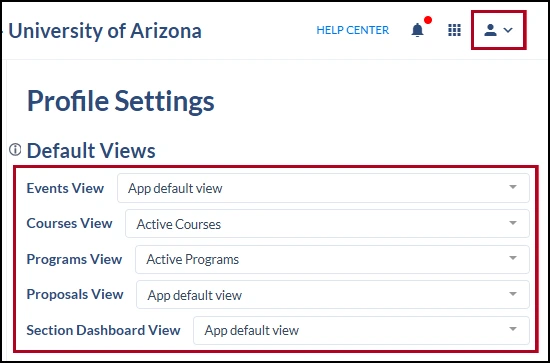
Step 5: Views can be created for and applied to select other areas, including the Courses and Programs pages. To determine which views you will see by default, open your account settings by clicking on the person icon. In the Default Views area, select individual saved views as appropriate from the dropdown menus. Changes made on this page are saved automatically.
SETTING UP EMAIL PREFERENCES
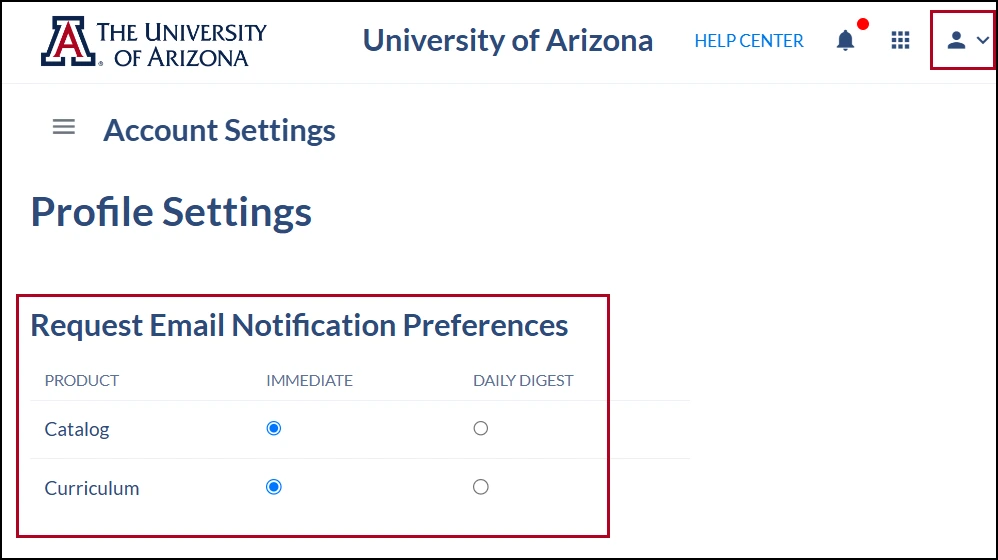
Step 1: You have the option of receiving proposal activity notifications on an immediate basis or collected into a single daily digest email. To record your preference, click on the person icon in the upper right corner of the page and select Account Preferences, then scroll to the Request Email Notification Preferences section at the bottom of the page.
Need Help? Contact Us!
Please contact the Office of the Registrar at badge@arizona.edu with any questions regarding submitting a new proposal.
created 1/2025